

Integration and API key
The «Settings» → «Integration» tab gives your developer everything they need: the shop id, the API key for the Shop API and the webhook settings.
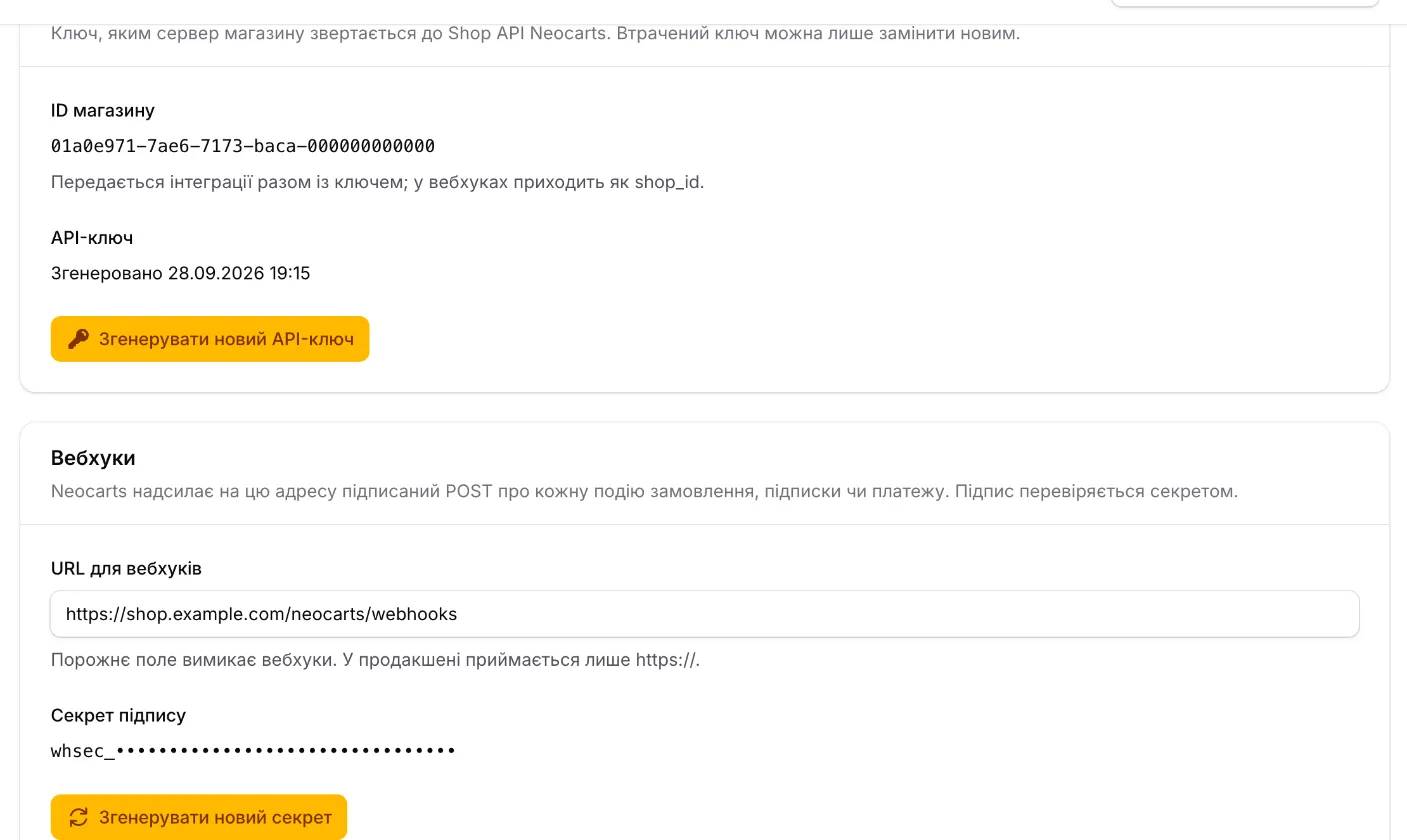
| Field | What it is | Secret? |
|---|---|---|
| «Shop ID» | The shop’s UUID. The widget needs it (data-shop-id) and it arrives in every webhook as shop_id |
no — fine to put into HTML |
| «API key» | nc_live_…, used by your server to call the Shop API. One per shop |
yes — shown only once |
| «Webhook URL» | The address on your server Neocarts POSTs events to |
no |
| «Signing secret» | whsec_…, used to verify a webhook’s signature |
yes — but shown every time |
API key
Section titled “API key”-
Click «Generate API key» and confirm.
-
Copy the key that appears and hand it to your developer over a secure channel.
-
After a reload the field shows only «Generated on dd.mm.yyyy hh:mm».
Replacing. Once a key exists, the button is called «Generate new API key». The old key stops working the moment you confirm, with no grace period — plan the replacement with your developer: generate → put on the server → verify. Replace the key if it was lost or may have leaked.
Any panel user can generate a key (there are no roles), so give panel access only to people you would trust with it. A Neocarts administrator can also issue a key at your request.
Webhooks
Section titled “Webhooks”- «Webhook URL» — an empty field switches webhooks off; production accepts
https://only. Saved with «Save». - «Signing secret» — the «Generate secret» button. Without a secret webhooks are not signed. The secret can be copied again later.
- «Generate new secret» — the current secret stops working immediately, so put the new one on your server right away. Deliveries that fail verification meanwhile are retried by Neocarts, and failed ones can be re-sent from the «Shop» → «Webhooks» log.
Go-live checklist
Section titled “Go-live checklist”- API key generated and handed to the developer; shop id copied.
- If needed — «Webhook URL» set and a «Signing secret» generated.
- A payment system selected and its keys entered — Payment.
- At least one delivery method on — Delivery.
- A discount set or deliberately left empty — Subscriptions.
- A palette chosen — Appearance.
Without payment and at least one delivery method the shop is not ready: the widget does not render on the site and orders do not open.